Paul Sutton

Personal Blog

Emacs Conference 2020 Writeup

Emacs Conference Logo

This years Emacs Conference [1] took place on the weekend of 28th and 29th November. This is the online conference aimed at users of the stalwart text editor which is described as “An extensible, customizable, free/libre text editor” [2]
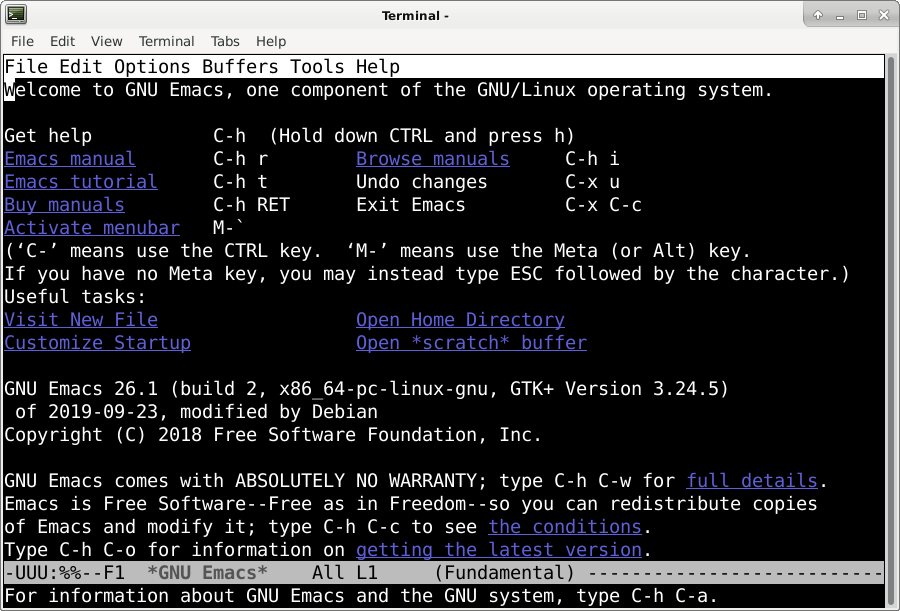
Emacs Terminal

Emacsconf this year had users from all different backgrounds, who use Emacs for a range of applications from basic text editing, writing documents in LaTeX, HTML or Markdown. Emacs is also popular with programmers and developers working on their latest project(s), but can also handle reading / writing email, chat, debugging software, and also has a built in calender and organiser to help you keep track of what you are doing. All this from a single interface.
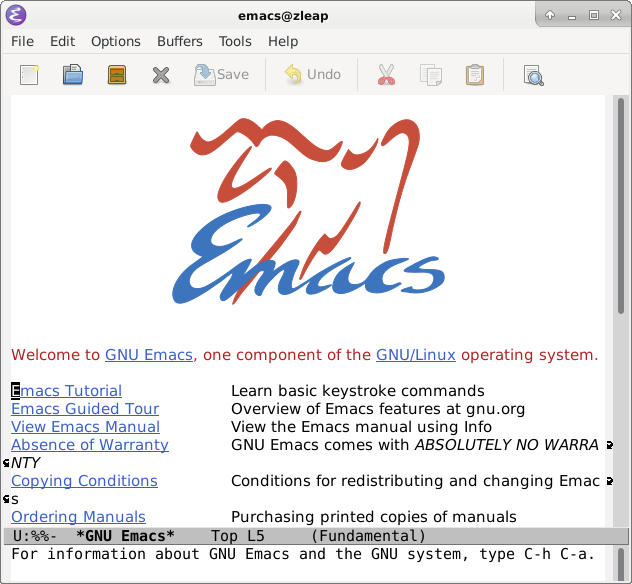
Emacs GUI

Emacs is free software, and released under the GNU license, so has the usual 4 freedoms of use, study, share and modify. The more accurate name is therefore GNU / Emacs.

Talks this year were presented with Big Blue button [5] and live streamed with gstreamer [4] and other tools. This combination worked really well.

Talks were either longer with time for questions and answers or shorter lightning talks on quick subjects. Attendees could add their questions to a collaborative text pad, that everyone had access to. There was a big social presence using IRC (chat) [3] which was active during the conference.

Topics included development updates, a new users viewpoint, writing novels, Music and quite a few on Org Mode which is used for creating task lists and much more. Emacs, has a steep learning curve, but is very powerful and flexible to use. I am still learning the basics.

All talks are available to view here

  1. https://emacsconf.org/
  2. https://www.gnu.org/software/emacs/
  3. https://webchat.freenode.net/ #emacsconf
  4. https://gstreamer.freedesktop.org/
  5. https://bigbluebutton.org/

#conference,#emacs,#editor,#2020,#review,#writeup,#fsf, #freedom,#FreeSoftware,#irc,#BigBlueButton,#gnu, #FreeDesktop,#gstreamer,#live,#virtual,#freenode

Creative Commons Licence
This work is licensed under a Creative Commons Attribution-ShareAlike 4.0 International License


Mastodon ShellLabs Join Mastodon
AI statement : Consent is NOT granted to use the content of this blog for the purposes of AI training or similar activity. Consent CANNOT be assumed, it has to be granted.

Donate using Liberapay

Privacy tools

Ok, more content shared on Mastodon / Fediverse. See my post from yesterday

There are several sites here.

Feel free to connect on Mastodon

Creative Commons Licence
This work is licensed under a Creative Commons Attribution-ShareAlike 4.0 International License


Mastodon ShellLabs Join Mastodon
AI statement : Consent is NOT granted to use the content of this blog for the purposes of AI training or similar activity. Consent CANNOT be assumed, it has to be granted.

Donate using Liberapay

Guide to the fediverse

With the Fediverse expanding it is really nice to have some great resources to explain how both the Fedivese ad in this case Mastodon work. This explanation is from torresjrjr

There is also a video on Peertube below.

More resources will be posted shortly, in the mean time you can sign up here

After which this website useful to help you find people with similar interests.

#fediverse,#mastodon,#ActivityPub,#guide.


Mastodon ShellLabs Join Mastodon
AI statement : Consent is NOT granted to use the content of this blog for the purposes of AI training or similar activity. Consent CANNOT be assumed, it has to be granted.

Donate using Liberapay

Mastodon toot client

Tip of the day

if using the toot command line client, you can toot the contents of a file.

Lets say 'text.txt' contains the following

Lorem ipsum dolor sit amet, consectetur adipiscing elit, sed do eiusmod tempor incididunt ut labore et dolore magna aliqua. Ut enim ad minim veniam

If you login to toot, then type

toot post < text.txt then the contents of that file will be posted to Mastodon.

Please feel free to follow me on Mastodon here

#mastodon,#toot,#tips,#hints,#commandline,#cli,#client, #text,


Mastodon ShellLabs Join Mastodon
AI statement : Consent is NOT granted to use the content of this blog for the purposes of AI training or similar activity. Consent CANNOT be assumed, it has to be granted.

Donate using Liberapay

Physics and cosmology videos

So day after xmas day and we have some rather nice, if not mind bending videos, on the world of Quantum physics etc.

Similar to what is on the PBS Space Time on you tube. But these are on Peertube. Produced by Fermilab on Physics, Astronomy, Cosmology etc.

Have fun

#video,#cosmology,#physics


Mastodon ShellLabs Join Mastodon
AI statement : Consent is NOT granted to use the content of this blog for the purposes of AI training or similar activity. Consent CANNOT be assumed, it has to be granted.

Donate using Liberapay

De google your internet.

Ok. firstly Merry Christmas, Todays post does seem rather apt given that people will be getting new devices today. However it is not the intention.

I found this on Mastodon, a nice set of links to privacy friendly alternatives to many common, mainstream internet services, such as cloud, search, social media.

#internet,#services,#privacy,#alternatives

Creative Commons Licence
This work is licensed under a Creative Commons Attribution-ShareAlike 4.0 International License


Mastodon ShellLabs Join Mastodon
AI statement : Consent is NOT granted to use the content of this blog for the purposes of AI training or similar activity. Consent CANNOT be assumed, it has to be granted.

Donate using Liberapay

Libhandy 1.0.3 released

Gnome team have announced the released of Libhandy 1.03

Most of the update appears to be a few bug fixes, but this is very welcome all the same.

Search libhandy on Mastodon for more details. you can follow me here or sign up and with this link here.

Link is set to last for 1 week then expire.

#gnome,#gtk,#libhandy,#release,#mobile,#app, #development,#update,#software,#library

Creative Commons Licence
This work is licensed under a Creative Commons Attribution-ShareAlike 4.0 International License


Mastodon ShellLabs Join Mastodon
AI statement : Consent is NOT granted to use the content of this blog for the purposes of AI training or similar activity. Consent CANNOT be assumed, it has to be granted.

Donate using Liberapay

Auto starting applications

Using Deluge as an EXAMPLE

  1. Goto

Menu —> Settings —> Session and Startup

In the video I am looking to see if the application is listed, (which it wasn't) then I click add and then fill in the details.

2. Off screen I used the Menu Editor application

Menu —> Settings —> Menu Editor

to find the executable binary file I needed to copy and paste in to the command field

  1. This process is fairly simple and is outlined below. It is sometimes useful to be able to disable or enable start up to help with troubleshooting.

#debian,#xfce4,#autostart,#applications

Creative Commons Licence
This work is licensed under a Creative Commons Attribution-ShareAlike 4.0 International License


Mastodon ShellLabs Join Mastodon
AI statement : Consent is NOT granted to use the content of this blog for the purposes of AI training or similar activity. Consent CANNOT be assumed, it has to be granted.

Donate using Liberapay

Thunderbird 78 Email tags

If like me you get a lot of e-mail, then being able to sort in to folders is a good thing. However if you have important e-mail, then you can use number keys 1-5 to tag the e-mail

1 = Important 2 = Work 3 = Personal 4 = To do 5 = Later

Each is colour coded, This video shows how to set up additional tags.

#email,#tags,#sort,#colorcode,#thunderbird78

Creative Commons Licence
This work is licensed under a Creative Commons Attribution-ShareAlike 4.0 International License


Mastodon ShellLabs Join Mastodon
AI statement : Consent is NOT granted to use the content of this blog for the purposes of AI training or similar activity. Consent CANNOT be assumed, it has to be granted.

Donate using Liberapay

Subscribe to Librelounge podcast with vlc

In today's video, I do a quick run through on how to subscribe to the Librelouge podcast using the vlc media player.

I am already subscribed to this, so before I paste the link in I remove the existing entry. But this also illustrates that it is just as easy to remove subscriptions.

#podcast,#vlc.#subscription,#rss,#media,#howto,#help, #support,#LibreLounge

Creative Commons Licence
This work is licensed under a Creative Commons Attribution-ShareAlike 4.0 International License


Mastodon ShellLabs Join Mastodon
AI statement : Consent is NOT granted to use the content of this blog for the purposes of AI training or similar activity. Consent CANNOT be assumed, it has to be granted.

Donate using Liberapay