Paul Sutton

Personal Blog

CyberSecurity part 10

So on to video 8 of 8, I will maintain the login link so that you don't need to go hunting back through previous posts.
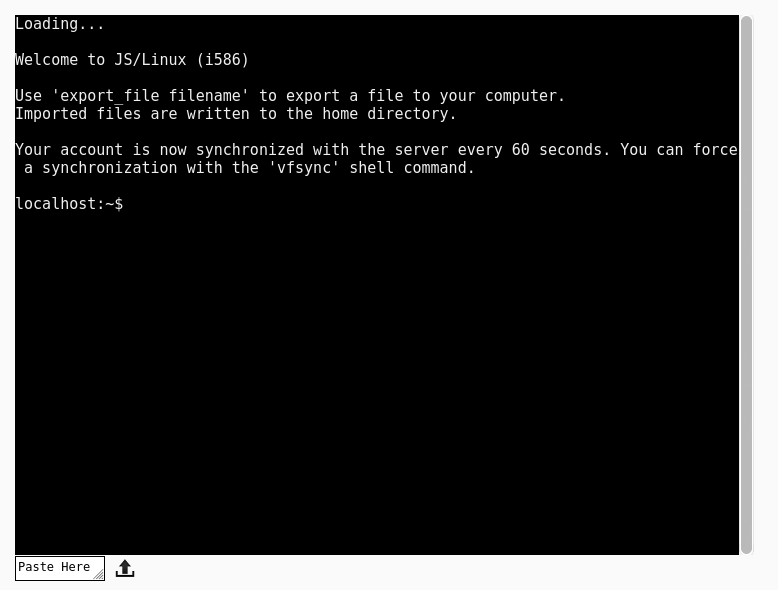
console1

This video completes this 8 part series, the next video that I found covers using the nano editor. After which I have found some more videos that cover shell scripting in more detail. I think it is important to be familiar with an editor before moving. So you may want to skip ahead to tomorrows video watch that, then come back to this if you want to be more familiar with nano going forward.

Discuss

Summary

I am not providing a summary for this.

Tags

#CyberSecurity,#BASHShell


Mastodon ShellLabs Join Mastodon
AI statement : Consent is NOT granted to use the content of this blog for the purposes of AI training or similar activity. Consent CANNOT be assumed, it has to be granted.

Donate using Liberapay

CyberSecurity part 9

So on to video 7 of 8, I will maintain the login link so that you don't need to go hunting back through previous posts.

console1

Discuss

Summary

  • free & free -h
  • df & df -h
  • du & du | les
  • watch – real time monitoring
    • watch free -h – ctrl q to quit
  • dmesg – kernel actions, lots of output so...
    • dmesg | tail
  • to view the last entries in syslog
    • tail / var/log/syslog
    • tail / var/log/syslog > syslog.txt – redirect to a file
  • System d
    • journalctrl – displays messages from boot
  • top – display processes etc
  • htop – as above but nicer program with more control
  • killall – kills a process
  • Network
    • video uses ifconfig, which is depreciated so ..
      • ip addr show – will show your ip and network info
  • ping – tests a website or computer is up
    • ping www.youtube.com
    • ping ipaddress e.g ping 192.168.2.100
  • Mounting file systems
  • lsblk – lists block devices
    • sudo mount /dev/sda2 /mnt – mounts a device (note this is the example from the video)
    • sudo umount /dev/sda2 – unmounts a device
  • sudo fdisk -l – display info on devices
  • UUID
    • sudo blkid – lists devices and uuid info
  • uname -a – lists system info e,.g kernel version and architecture
  • history – display command history
    • history | less or
    • history 10
  • pressing tab after a partly typed command auto completes e.g :
    • his produces
    • history
  • cal displays calender
  • Disk defrag, as video says this may not be needed, but IS useful if needed
    • sudo ex4defrag /home -c this checks to see if you need to defrag – degrag s only for older hard disks, does not work on solid state devices
  • sudo reboot – will reboot the system
  • sudo shutdown -r – will reboot
  • sudo shutdown -h halts the system
  • sudo shutdown -t 20 – sets a 20 minute timer
    • sudo shutdown -c cancels the shutdown timer

Again, all these commands do have a related man page.

Tags

#CyberSecurity,#BASHShell


Mastodon ShellLabs Join Mastodon
AI statement : Consent is NOT granted to use the content of this blog for the purposes of AI training or similar activity. Consent CANNOT be assumed, it has to be granted.

Donate using Liberapay

Overleaf Webinar May 17

Date & Time(s): Tuesday, May 17, 2022, 10AM ET / 3PM BST / 7AM PT.

Topic: Intro To Overleaf Part II: Intermediate Features

Description

Our Intro to Overleaf Part II webinar is perfect if you want a deeper insight into how to best use Overleaf and make the most of your account access or subscription. In this webinar we’ll be covering:

  • Creating a new project
  • Adding Images and Tables
  • Uploading a bibliography
  • Fixing errors
  • Sharing your project
  • Submitting your project to a journal

  • Signup

Related Links

Tags

#TeXLaTeX,#Overleaf,#OverleafWebinars


Mastodon ShellLabs Join Mastodon
AI statement : Consent is NOT granted to use the content of this blog for the purposes of AI training or similar activity. Consent CANNOT be assumed, it has to be granted.

Donate using Liberapay

CyberSecurity part 8

So on to video 6 of 8, I will maintain the login link so that you don't need to go hunting back through previous posts.

console1

Discuss

Summary

So the topics looked at here are, and this specific to apt, so most of the commands work on Debian, and one or two such as the PPA management is Ubuntu specific. Again watching the video is really useful

  • apt update
  • sudo apt upgrade
  • sudo apt dist-upgrade
  • sudo apt remove
  • sudo apt install
  • apt cache search – for lots of output you can use
    • apt cache search | less
  • downloading deb packages with wget
  • installing downloaded deb packages with dpkg
  • installing from PPA (personal package archive – ubuntu specific)
  • cleaning the system
    • sudo apt clean
    • sudo apt autoclean
    • sudo apt autoremove
    • sudo apt autoclean

Again the man pages have a lot more information.

Tags

#CyberSecurity,#BASHShell


Mastodon ShellLabs Join Mastodon
AI statement : Consent is NOT granted to use the content of this blog for the purposes of AI training or similar activity. Consent CANNOT be assumed, it has to be granted.

Donate using Liberapay

CyberSecurity part 7

So on to video 5 of 8, I will maintain the login link so that you don't need to go hunting back through previous posts.

console1

Discuss

Summary

Not all of these will work with vfsync.

Add user accounts with adduser To drop to that user from your account su – bob (the hyphen is important display groups for a user su -c 'groups' bob

other commands mentioned include :-

useradd – adds user to a grop gropdel / delgroup – manage groups deluser – delete user

All these are covered in man pages

change user password

sudo passwd bob

lock a user out of their account : sudo passwd -l bob – unlock a user account : sudo passwd -u bob

delete a user

sudo deluser bob will only remove a user, to remove their files use

cd /home ls rmdir -r bob (use recursive with extreme caution)

When you set up a user, you add info, this is called finger information, if you need to change this, then you can use the chfn command with

sudo chfn user

Again this is just a summary and should be used in combination with the video.

Tags

#CyberSecurity,#BASHShell


Mastodon ShellLabs Join Mastodon
AI statement : Consent is NOT granted to use the content of this blog for the purposes of AI training or similar activity. Consent CANNOT be assumed, it has to be granted.

Donate using Liberapay

Code Club 7/5/2022 Write up

We had a quiet code club today, only 3 people turned up, nevertheless it was quite productive as the two young people and their mum who came were working with Roblox and we had a short discussion around Roblox studio and what they do at school with regard to coding. As we can't install anything on the computers, they were using online resources.

Links

Tags

#CodeClub,#FreeCodeCamp,#Microbit,#Scratch,#Python,#WebDesign,#Lego,#Coding,#Education,#LookingForWork,#LegoWeDo, #Replit,#LookingForWork

Please contact Paignton Library.

Next week – 14th May is STEM Group. Next Code Club – 21st May


Mastodon ShellLabs Join Mastodon
AI statement : Consent is NOT granted to use the content of this blog for the purposes of AI training or similar activity. Consent CANNOT be assumed, it has to be granted.

Donate using Liberapay

CyberSecurity part 6

So on to video 4 of 8, I will maintain the login link so that you don't need to go hunting back through previous posts.

console1

Discuss

Summary

Find command allows you to find:-

  • Programs
  • Files

man pages

man is short for manual, we cam use this to view the manual pages for commands e.g :-

  • man mv
  • man nano
  • man htop

On a similar note there are also info pages, which are another source of information.

If we want to find programs we can use the which command which outputs the path to a particular program.

Command : which htop Output : /use/bin/htop

Finding files

find -name junk.txt will find and display the path to the junk.txt file

As a normal user you can also search for files such as fstab, however as this is owned by root you will get permission errors.

Find text within files

grep (GNU Regular Expression Parser)

grep nano junk.txt so here we have command string to search for file to look in

we can direct the output of this with

grep nano junk.txt > grep.txt

will search junk.txt for the string nano, the direct the output to the file grep.txt

Tags

#CyberSecurity,#BASHShell


Mastodon ShellLabs Join Mastodon
AI statement : Consent is NOT granted to use the content of this blog for the purposes of AI training or similar activity. Consent CANNOT be assumed, it has to be granted.

Donate using Liberapay

Code Club 7/5/2022

The next Club will be on Saturday 7th May 2022 @ Paignton Library.

We will carry on with what we were doing at previous sessions, hopefully do more with the Lego WeDo and Python. I have also been working on a series of posts on this website to introduce different topics, with the eventual aim of this leading to posts about cybersecurity. So the series starts off with some youtube videos (not mine, but they are an excellent introduction) to the BASH shell.

If you are following the activities provided by code club, please use the website link below. There are now many new activity links.

Links

Tags

#CodeClub,#FreeCodeCamp,#Microbit,#Scratch,#Python,#WebDesign,#Lego,#Coding,#Education,#LookingForWork,#LegoWeDo, #Replit

Please contact Paignton Library.

Next week – 14th May is STEM Group. Next Code Club – 21st May


Mastodon ShellLabs Join Mastodon
AI statement : Consent is NOT granted to use the content of this blog for the purposes of AI training or similar activity. Consent CANNOT be assumed, it has to be granted.

Donate using Liberapay

CyberSecurity part 5

So on to video 3 of 8, I will maintain the login link so that you don't need to go hunting back through previous posts.

console1

Discuss

Summary

Video starts off correcting an error from the first video, presenter forgot to cover the copy (cp) command, this is discussed at the start of the video.

Example 1 – make a backup of a file

cp file1.txt file2.bak.txt

Example 2 – Copy a file to home directory

Lets say we are in /home/user/junk (like in the video):-

cp file1.txt ~/ will copy to home directory. You can use cd,, to drop down a level in the file system to /home/user to confirm this.

Also use wildcards e.g

cp *.txt will copy any files with .txt as the extension.

User permissions

chmod – change mod using sudo on its own has a time out sudo -s assumes the root user to root until you type exit

root user has a # normal users have $

changing owner permissions

chown – change owner

chown user:group file.txt

You need to be root for this so use sudo chown user:group file.txt

Tags

#CyberSecurity,#BASHShell


Mastodon ShellLabs Join Mastodon
AI statement : Consent is NOT granted to use the content of this blog for the purposes of AI training or similar activity. Consent CANNOT be assumed, it has to be granted.

Donate using Liberapay

CyberSecurity part 4

So on to video 2 of 8, I will maintain the login link so that you don't need to go hunting back through previous posts.

console1

Summary

So this episode looks at how we can view the content of text files, which are used for pretty much everything on GNU / Linux system.

On a very basic level, the echo command will send the contents of a file to the screen

echo file.txt

cat – which is short for conCATenate is good for looking at short files, however sometimes we have files that are longer than the screen can display so we can use the less command

cat filename less filename

The less command stops displaying contents and then allows us to view more lines by pressing enter on the keyboard, press q to quit this program.

You can also apply this to more than one file

cat file1.txt file2.txt

we can also pipe output of cat in to less e.g

cat /etc/fstab | less to get the same effect

Sometimes we need to add a single line to the end of a file (append) we can add another like to the end of file.txt with:-

echo “new text” >> file.txt

You can also append the contents on one file to the end of another

cat file1.txt >> file2.txt

To edit a file in more depth, we need to use an editor such as nano

So nano /etc/fstab will open the file as read only,* this is because files such as /etc/fstab re read only to normal users, in order to edit, you need to elevate your privileges using sudo.

sudo nano /etc/fstab

You will need to enter your password to proceed at this point, of course your user needs to be part of the sudoers list in order to do this, otherwise you get reported to your sysadmin. Ubuntu based distributions use sudo to elevate permissions by default, Debian using root / user set up so you have to use su unless you set your system user up to use sudo.

Discuss

Tags

#CyberSecurity,#BASHShell


Mastodon ShellLabs Join Mastodon
AI statement : Consent is NOT granted to use the content of this blog for the purposes of AI training or similar activity. Consent CANNOT be assumed, it has to be granted.

Donate using Liberapay